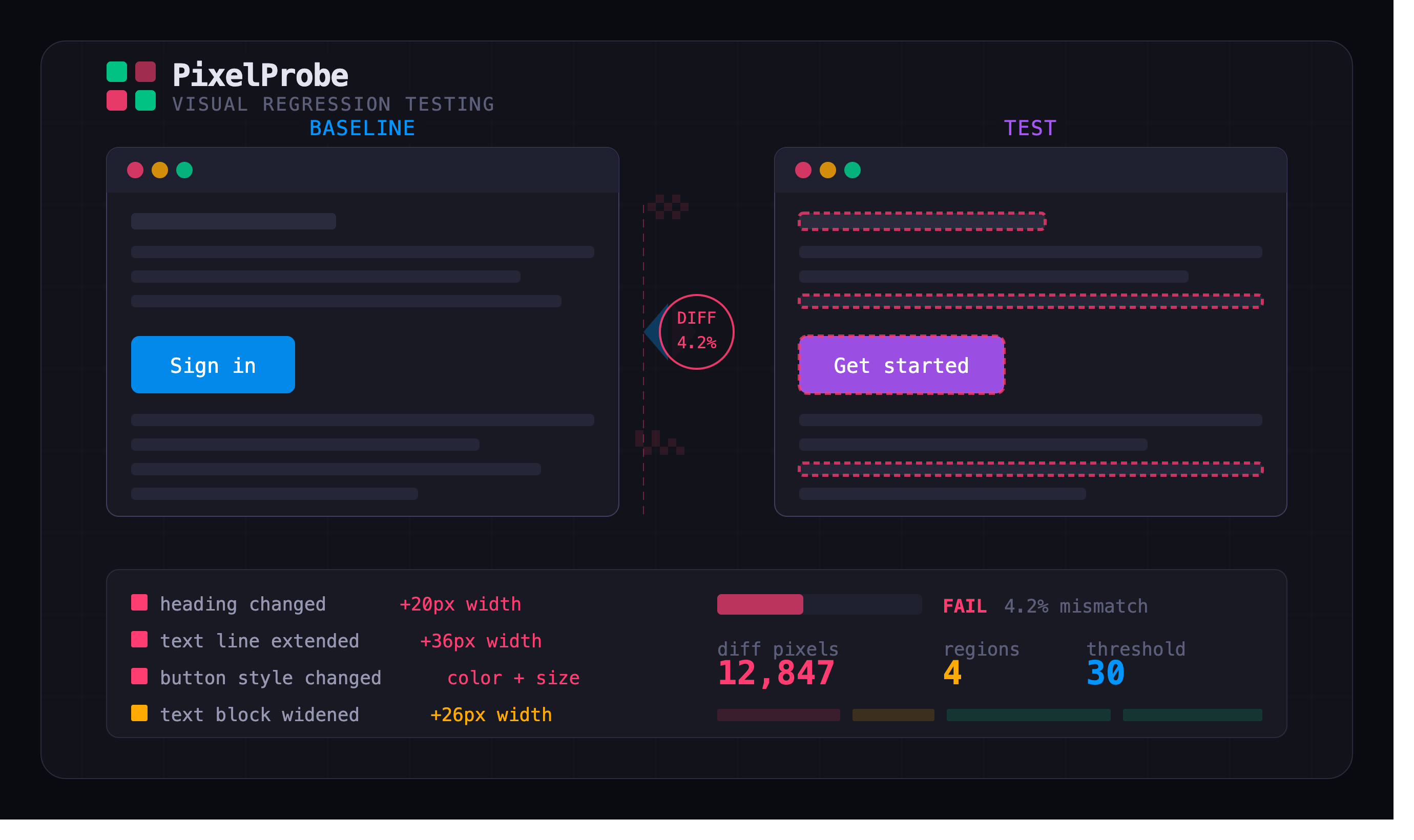
Every frontend developer has shipped a CSS change that looked perfect on their screen and broke something three pages away. A padding tweak that collapses a sidebar. A font-weight update that shifts a call-to-action button below the fold. A color variable rename that turns half the dashboard invisible in dark mode.
The standard defense is manual QA — someone opens every page, squints at it, and says "looks fine." That works until it doesn't. Human eyes are terrible at catching a 2px shift in a nav bar or a slightly different shade of gray on a border. We're pattern-matchers, not pixel-counters.
Tools like Cypress and Playwright have visual regression testing built into their ecosystems, but they're full testing frameworks. Sometimes you don't need an end-to-end test runner — you just need to compare two screenshots and know exactly what changed. So I built PixelProbe: a Flask-based visual regression tool that takes a baseline screenshot, compares it against a test screenshot pixel-by-pixel, and generates four different visualizations of every difference it finds.
This post walks through the architecture, the image processing pipeline, and the design decisions that make it actually useful for frontend QA.
Why Screenshots, Not DOM Diffing
There are two philosophies for catching visual regressions. DOM diffing compares the structure of the page — did a class change, did an element move in the tree, did a style rule get overridden? Screenshot diffing compares what the user actually sees — the rendered pixels on screen.
DOM diffing is faster and more precise about what changed, but it misses an entire class of bugs. A font that fails to load renders different glyphs but the DOM is identical. A z-index conflict hides an element behind another, but both elements are present in the markup. An image that 404s shows a broken icon, but the <img> tag hasn't changed.
Screenshot comparison catches all of these because it operates on the final rendered output. If a pixel changed, PixelProbe finds it — regardless of why it changed. The tradeoff is that it can't tell you the root cause. It tells you where to look, not what to fix. For a QA workflow, that's exactly the right level of information.
Architecture Overview
PixelProbe is a Flask application with three layers and a clean separation between processing and presentation.
The upload layer handles drag-and-drop file uploads through a REST endpoint. It accepts PNG, JPEG, WebP, and BMP files up to 50MB. Each comparison run gets a unique ID, and both the baseline and test images are saved to disk with that prefix. This means you can trace any diff image back to the exact pair of inputs that generated it.
The comparison engine is the core of the tool. It loads both images using Pillow, normalizes them to RGBA, and walks every pixel position on a canvas sized to the larger of the two images. For each position, it calculates the per-channel absolute difference between the baseline and test pixel, then checks that against a configurable threshold. If the difference exceeds the threshold, that pixel is marked as changed.
The output generator takes the raw diff data and produces four separate visualizations — a diff map, an overlay, a heatmap, and a side-by-side composite — plus a JSON report with cluster analysis. Everything is saved to disk with the run ID prefix, so results persist across sessions.
The frontend is vanilla HTML, CSS, and JavaScript. No React, no build step, no node_modules. You clone the repo, pip install, and go.
The Pixel Comparison Pipeline
The comparison function is where most of the interesting decisions live. Here's the core loop, simplified:
for y in range(max_h):
    for x in range(max_w):
        bp = baseline_px[x, y][:3]  # RGB of baseline
        tp = test_px[x, y][:3]      # RGB of test

        channel_diff = sum(abs(a - b) for a, b in zip(bp, tp))
        per_channel = channel_diff / 3

        if per_channel > threshold:
            # Mark as different
            diff_pixels += 1
The threshold is a per-channel average, not a total. A threshold of 30 means any pixel where the average channel difference exceeds 30 (out of 255) is flagged. This matters because a shift from rgb(100, 100, 100) to rgb(130, 100, 100) — a subtle red tint — has a per-channel average of 10, which would pass at threshold 30. But rgb(100, 100, 100) to rgb(200, 200, 200) — an obvious brightness change — averages 100, which gets caught immediately.
The threshold slider in the UI goes from 0 (flag any difference, even a single bit) to 100 (ignore most changes). The default of 30 was chosen empirically — it catches meaningful visual changes while ignoring JPEG compression artifacts and subpixel rendering differences between browsers.
Four Ways to See What Changed
A single diff view is never enough. Different types of regressions are easier to spot in different visualizations, so PixelProbe generates four.
Diff Map renders changed pixels as bright magenta on a near-black background. Unchanged areas are shown as dimmed grayscale. This is the forensic view — it strips away everything except the changes, making even single-pixel shifts visible. It's what you want when hunting for subtle alignment bugs.
Overlay takes the test screenshot and paints semi-transparent red rectangles over every changed region. This answers the question "where on my page did things break?" without requiring you to mentally map coordinates between the diff and the actual UI.
Heatmap uses a blue-to-yellow-to-red gradient to show change intensity. A region that shifted by 5 pixel values shows as cool blue. A region that shifted by 200 shows as hot red. This is useful when you have hundreds of small changes (like a font swap) and need to prioritize which ones matter most.
Side by Side pastes the baseline and test images next to each other with a thin separator. Simple, but surprisingly effective for spotting layout shifts and spacing changes that are hard to catch in isolation.
There's also an interactive slider on the frontend — a before/after view where you drag a handle left and right to reveal the baseline or test image. This one is purely client-side; the server doesn't generate it.
Region Clustering
Flagging individual pixels is useful but noisy. A one-line CSS change might affect 50,000 pixels across a large screenshot. Reporting "50,000 pixels changed" is technically correct and practically useless.
PixelProbe clusters adjacent diff pixels into bounding-box regions using a simple proximity algorithm. For each unclaimed diff pixel, it gathers all other diff pixels within a 20px radius and groups them into a cluster with a bounding box, pixel count, and average intensity.
def cluster_regions(regions, distance=20):
    clusters = []
    used = set()
    sorted_regions = sorted(regions, key=lambda r: (-r["intensity"], r["y"], r["x"]))

    for i, region in enumerate(sorted_regions):
        if i in used:
            continue
        cluster_points = [region]
        used.add(i)

        for j, other in enumerate(sorted_regions):
            if j in used:
                continue
            if abs(other["x"] - region["x"]) <= distance and abs(other["y"] - region["y"]) <= distance:
                cluster_points.append(other)
                used.add(j)
        # Build bounding box from cluster_points
The clusters are sorted by pixel count (largest first) and capped at 50. This gives the report a human-readable summary: "3 regions changed — a 400px area in the header, a 120px area in the sidebar, and a 30px area in the footer." That's actionable. "47,293 pixels changed" is not.
The clustering is deliberately simple — it's not DBSCAN or connected-component analysis. For visual regression detection, approximate grouping is fine. You need to know where to look, not the exact mathematical boundary of every changed region.
Pass / Warn / Fail Classification
Every comparison returns one of three statuses based on the mismatch percentage:
- Pass (< 0.1% mismatch) — screenshots are effectively identical. Tiny subpixel differences or antialiasing artifacts.
- Warn (0.1% – 1.0%) — something changed, but it might be intentional. A text content update, a minor spacing adjustment.
- Fail (> 1.0%) — significant visual regression. Layout shifts, missing elements, color changes. These thresholds are opinionated defaults. In a production CI pipeline, you'd want them configurable per-project — a marketing landing page might have a 0.01% tolerance, while a data dashboard with dynamic content might need 5%. But for the default experience, the 0.1/1.0 split captures the right intuition.
The status banner in the UI uses color-coded backgrounds (green, amber, red) so you can read the result at a glance before diving into the visualizations.
Handling Size Mismatches
A subtle but important decision: PixelProbe handles baseline and test images of different sizes. If the baseline is 1200×800 and the test is 1300×850, the comparison canvas is 1300×850. Pixels that exist in the test but not the baseline (the extra 100×50 strip) are compared against black and flagged as changed.
This catches an entire class of regressions that same-size-only tools miss: viewport changes, content that pushes the page taller, responsive breakpoints that alter the layout dimensions. If your test screenshot is taller than your baseline, that's information — PixelProbe surfaces it.
Persistence and History
Every comparison run saves a full JSON report to disk with timestamps, metrics, cluster data, and paths to all generated images. The History tab in the UI lists all past runs with their status and mismatch percentage, and clicking one loads the full result.
This is intentionally file-based, not database-backed. The reports are plain JSON files in a reports/ directory. You can grep them, jq them, back them up by copying a folder, or pipe them into a CI dashboard with a three-line script. The simplicity is the feature.
For a team deployment, you'd probably want a proper database, pagination, and retention policies. But for a single developer or a small QA team, the filesystem is the right persistence layer — zero configuration, zero dependencies, instantly inspectable.
The Threshold Problem
Getting the sensitivity threshold right is the hardest UX challenge in visual regression testing. Too sensitive and every comparison fails because of JPEG artifacts, font rendering differences between OS versions, or subpixel antialiasing. Too lenient and real regressions slip through.
There's no universal answer. PixelProbe's approach is to make the threshold visible and adjustable — the slider is front and center in the comparison panel, not buried in a config file. The default of 30 is conservative enough to catch real bugs while ignoring the noise that makes people distrust visual testing tools.
In practice, teams that adopt visual regression testing go through a calibration phase. You run the tool on a known-good pair of screenshots and lower the threshold until the noise disappears. Then you raise it slightly for headroom. That calibrated value becomes your project's standard. PixelProbe's slider makes that calibration process interactive instead of a guess-and-redeploy cycle.
What's Next
The natural extensions are test suite batching (compare 20 page pairs in one run), a CLI mode for CI/CD integration, Selenium and Playwright hooks to capture screenshots automatically, configurable per-region thresholds (stricter for the hero section, lenient for the ad slot), and a web-based dashboard for tracking regression trends over time.
But the core workflow — upload two screenshots, see exactly what changed, decide if it's a problem — is complete and working. It's the tool I wanted every time a PR review included the comment "I checked it visually and it looks fine" with no evidence attached.
PixelProbe replaces "looks fine" with proof.
PixelProbe is open-source. Built with Python, Flask, Pillow, and vanilla JavaScript.


No comments yet
Be the first reader to add one.